
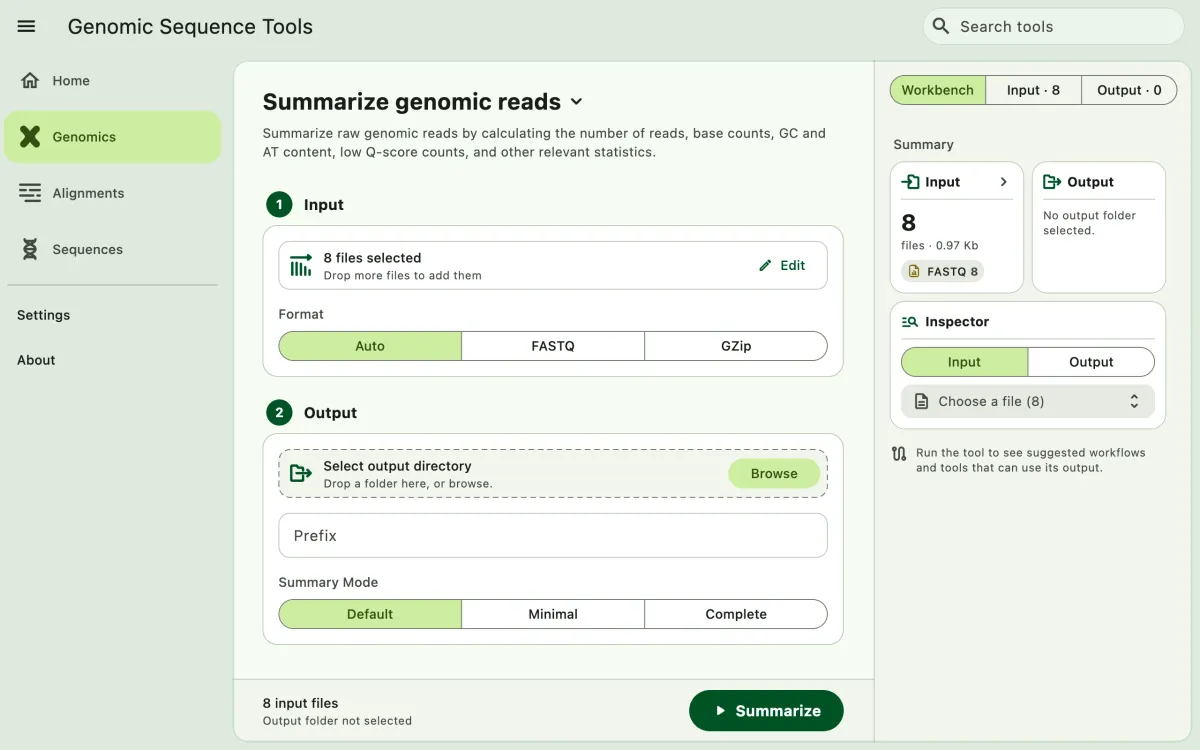
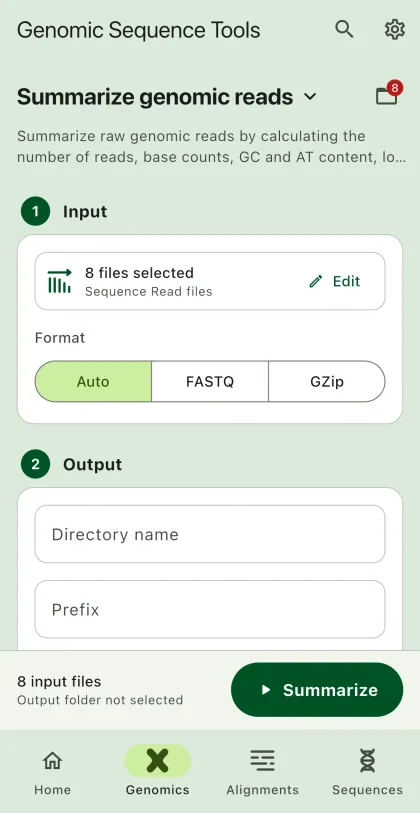
Summarize raw sequence reads in FASTQ format, plain or compressed, from read counts and base quality to duplication and adapter content. For assembled contigs, see Genomic Contig Summary.
- Select
Genomicsin the navigation bar A. - Open
Summarize genomic readsfrom the tool list on wide windows, or select the tool name B at the top of the page to switch tools. - Add the input files C with
Browse files,Browse folder, orOpen archive. SEGUI searches a folder and its subfolders for files that match the tool's input format. See file input for mobile options. - The
Inputtab of the file panel E lists the input files. On phones and narrow windows, open it with the files button next to the tool name. To remove files from the list, chooseSelect, pick the files, and selectRemove. The files stay on your device. - Select the summary mode. For the Default and Complete modes,
Quality score offsetisAutounless your reads use a known offset. - Select the run button D, labeled
Summarize, to start the task. - In Complete mode, the
Workbenchtab of the file panel shows aReportcard when the task finishes. SelectView reportto open the read report. You can also openread-report.jsonfrom theOutputtab later. - Export or share the output (optional). See exporting output.
Summary Mode
Section titled “Summary Mode”The app supports the following summary modes:
- Minimal: read count only
- Default: generate essential statistics (see below)
- Complete: generate all the essential statistics plus statistics per read position, distributions, duplication, overrepresented sequences, and adapter content for each file.
Essential statistics for raw reads
Section titled “Essential statistics for raw reads”- Number of reads
- Number of bases
- Mean read length
- Minimum read length
- Maximum read length
- GC count
- GC content
- AT count
- AT content
- A, C, G, T, N count
- Low quality base count
- Mean base quality
- Min base quality
- Max base quality
- Median, standard deviation, and N50 of read length
- Q20 and Q30 bases
- Mean quality per read, and reads with mean quality below 20
Read report
Section titled “Read report”The read report shows the Complete mode statistics as interactive charts, one sample at a time, much like the alignment viewer shows one file at a time.
- Switch samples: step through samples with the arrows above the tabs, or with
Alt+↑/↓(Optionon macOS). Select the sample name to search for one. - Sample list: the list beside the report shows each sample's status, reads, and Q30 bases. Filter it by name, and sort it by name, status, reads, or Q30 bases. The arrows and the summary follow its order. Hide it with the list button next to the sample name. On phones, the same button opens the list as a sheet.
The tabs are:
- Summary: every sample at once.
Barsplots one statistic per sample, such as reads, Q30 bases, GC content, duplication, or adapters; select a bar to open that sample.Tablelists every statistic, sortable by column. Below are the pass, warn, or fail checks of the open sample. - Quality: per-base quality of the open sample over the good, reasonable, and poor quality zones, and per-read quality of several samples.
- Composition: GC content with the theoretical distribution and base composition of the open sample, and N content of several samples.
- Length: read length of several samples.
- Duplication, Adapters, and Overrepresented: the open sample. Each overrepresented sequence has a button to copy it.
Charts of several samples have chips above them to choose which samples to compare.
In Complete mode, Duplication sketch size sets how many distinct sequences are kept to estimate duplication across every read. Leave it empty for the default of 100,000. Larger values are more accurate and use more memory, and 0 counts every sequence exactly.
Hover over or touch a chart to see its values. Zoom along the horizontal axis with the mouse wheel or a pinch, and drag or scroll with a trackpad to pan.