
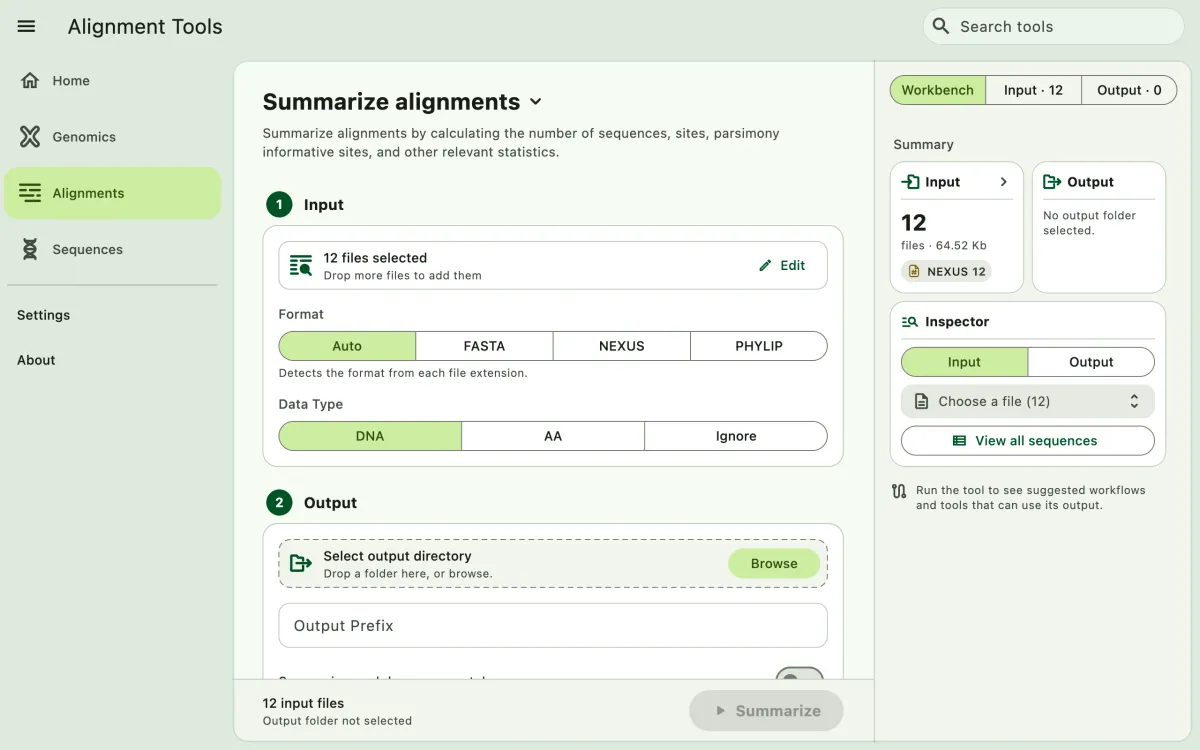
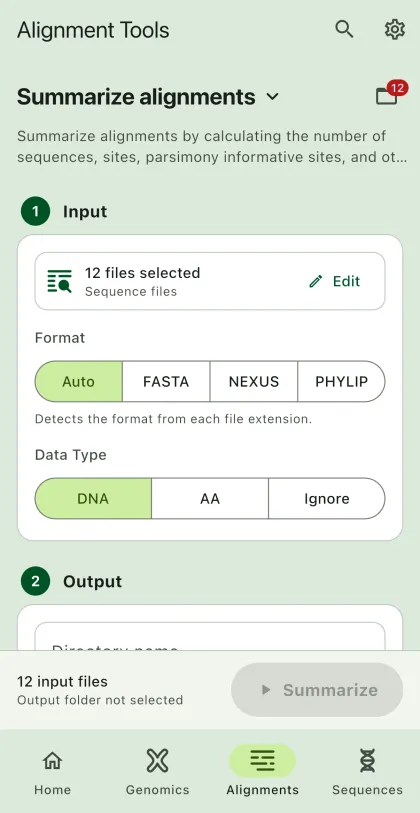
Summary statistics for many alignments.
- Select
Alignmentsin the navigation bar A. - Open
Summarize alignmentsfrom the tool list on wide windows, or select the tool name B at the top of the page to switch tools. - Add the input files C with
Browse files,Browse folder, orOpen archive. SEGUI searches a folder and its subfolders for files that match the tool's input format. See file input for mobile options. - Select
BrowseunderSelect output directoryto choose the output folder. On phones and tablets, enter aDirectory nameinstead; SEGUI saves it in the app's own folder. - Add prefix for the output files.
- Turn on
Summarize each locus separatelyto write a summary file for each alignment instead (optional). - Select the run button D, labeled
Summarize, to start the task.
Output
Section titled “Output”The app have three output files:
- Alignment summary: A summary of the input alignments written to a text file (default name:
alignment_summary.txt). - Locus summary: A summary of each alignment/locus written to a csv file (default name:
locus_summary.csv). - Taxon summary: A summary of each taxon written to a csv file (default name:
taxon_summary.csv).
Per-locus summary
Section titled “Per-locus summary”With Summarize each locus separately on, the app writes a taxon summary for each alignment instead of the combined summary files. The summary interval does not apply to this mode.
Prefix
Section titled “Prefix”The prefix is the name of the output files. For example, if the prefix is output, the app will generate output_locus_summary.csv, output_taxon_summary.csv, and so on.