
Convert alignment from one format to another.
- Select
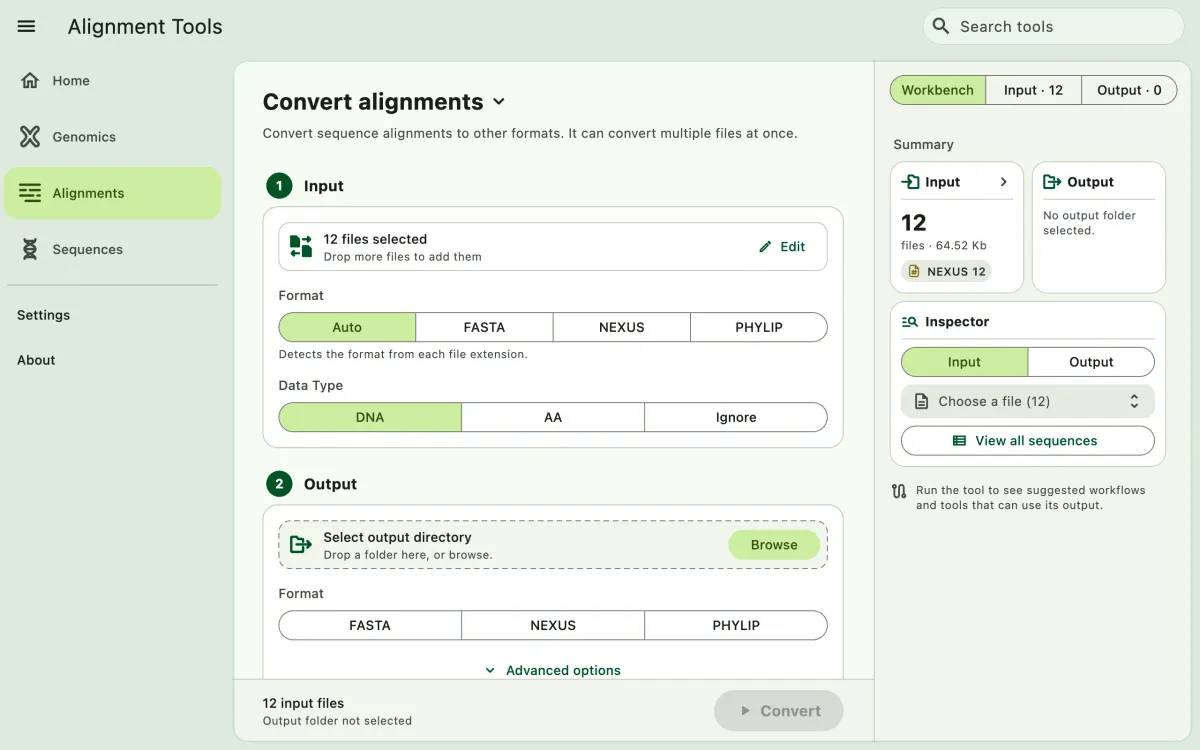
Alignmentsin the navigation bar A. - Open
Convert alignmentsfrom the tool list on wide windows, or select the tool name B at the top of the page to switch tools. - Add the input files C with
Browse files,Browse folder, orOpen archive. SEGUI searches a folder and its subfolders for files that match the tool's input format. See file input for mobile options. - The
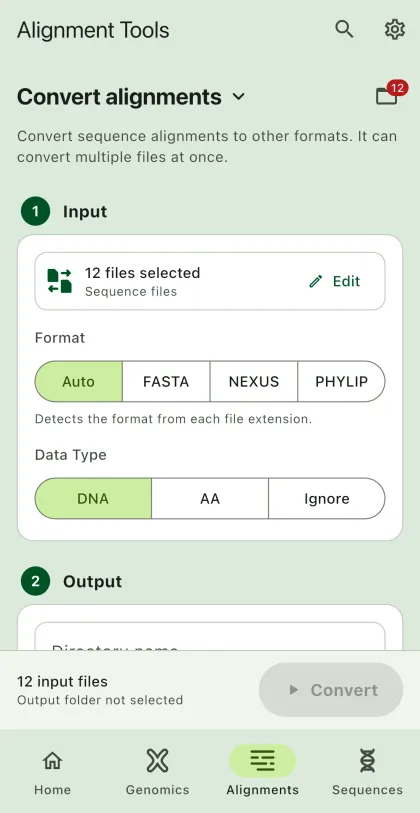
Inputtab of the file panel E lists the input files. On phones and narrow windows, open it with the files button next to the tool name. To remove files from the list, chooseSelect, pick the files, and selectRemove. The files stay on your device. - Select input format (optional). See the supported file extensions for the list of supported extensions for alignment files.
- Select
BrowseunderSelect output directoryto choose the output folder. On phones and tablets, enter aDirectory nameinstead; SEGUI saves it in the app's own folder. - Set the output format.
- Set the sort sequences (optional).
- Select the run button D, labeled
Convert, to start the task. - Export or share the output (optional). See exporting output.
Output
Section titled “Output”The app will create converted files in the output directory. The app will display the output in the output files panel once it's done.
Output format
Section titled “Output format”The app supports FASTA, NEXUS, and PHYLIP output formats. By default, it writes non-interleaved output. To write interleaved output, select Advanced options and turn on Set interleaved format.
Sort sequences
Section titled “Sort sequences”By default the app keep the original order of the sequence. To sort the sequences, turn on Sort by sequence ID. The app will sort the sequences based on the sequence ID. The sorting is in alphanumeric order.