
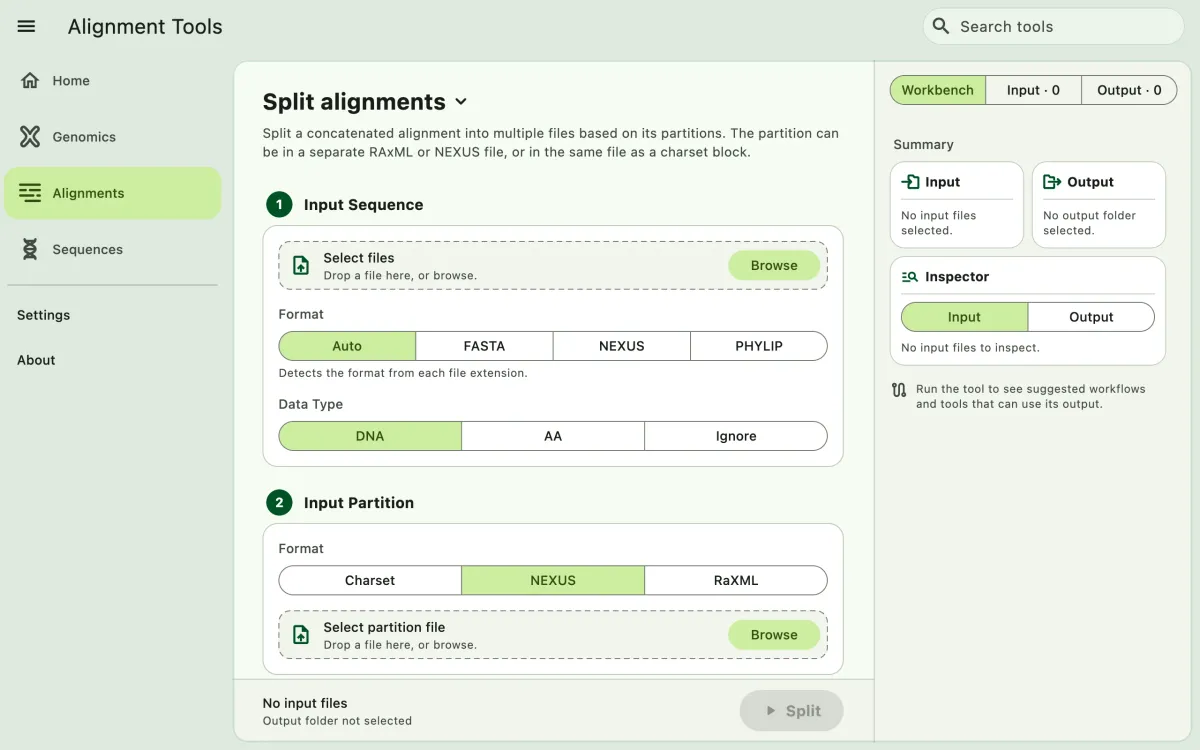
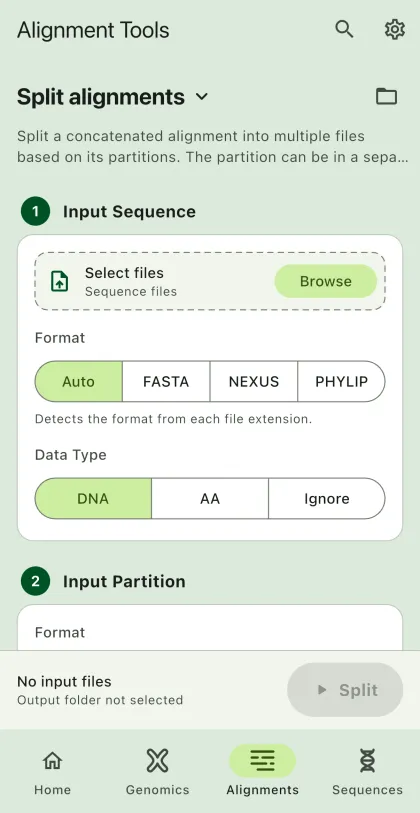
Split alignments into multiple files based on the partition.
- Select
Alignmentsin the navigation bar A. - Open
Split alignmentsfrom the tool list on wide windows, or select the tool name B at the top of the page to switch tools. - Add the input files C with
Browse files,Browse folder, orOpen archive. SEGUI searches a folder and its subfolders for files that match the tool's input format. See file input for mobile options. - Under
Input Partition, select the partition format, then select the partition file withBrowse. Skip the file for a charset partition in the same NEXUS file as the alignment. - Select
BrowseunderSelect output directoryto choose the output folder. On phones and tablets, enter aDirectory nameinstead; SEGUI saves it in the app's own folder. - Add a prefix for the output files.
- Select the output format.
- Select the run button D, labeled
Split, to start the task.
Input Partition
Section titled “Input Partition”The app supports input partition formats. The input partition format is the format of the partition file you want to split. Partition options include:
- Charset: partition embedded in NEXUS sequence files
- Nexus: partition file in NEXUS format
- Raxml: partition file in RAxML format
It supports standard and codon model partitions. However, merged partitions are not supported. The partition format will include the datatype as below:
DNA, locus_1 = 1-100DNA, locus_2 = 101-150DNA, locus_3 = 151-200Unsupported partition format examples:
DNA, part1 = 1-100, 201-300DNA, part2 = 101-200Check Partition for Errors
Section titled “Check Partition for Errors”The app checks for the following rules:
- First partition position starts with 1.
- The next partition is next number after the end of the previous partition. If codon model, it will check the next locus applies the rule.
Prefix
Section titled “Prefix”The prefix is the name of the output files. For example, if the prefix is output, the app will generate output_locus1, output_locus2, and so on.